Resolving Common Network Ingestion Blocks
If OBS Studio shows a black screen or your DJI drone fails to connect, Windows Defender Firewall may be blocking incoming RTMP traffic on port 1935 TCP or port 8189 UDP.
How to Allow Ports in Windows Defender Firewall
- Open Start Menu, search for Windows Defender Firewall with Advanced Security.
- Click Inbound Rules → New Rule... → Port → Next.
- Select TCP, enter Specific Local Ports:
1935. Click Allow the Connection. Name it CastZero RTMP Ingest. - Create another Inbound Rule for UDP port
8189. Name it CastZero WebRTC Direct.
Verifying Local Stream Connectivity
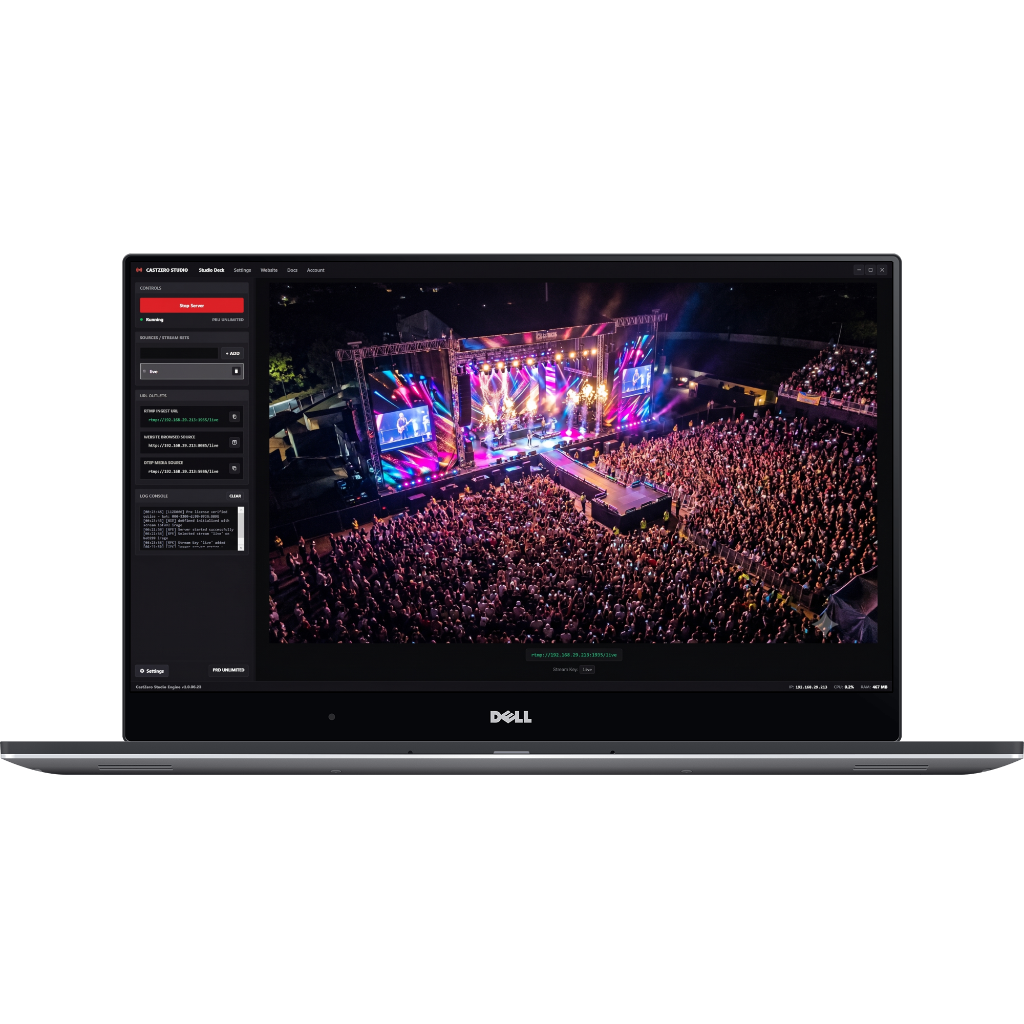
Open CastZero Desktop Client. When an active stream is publishing, the indicator bar turns green and shows live bitrate. Copy the generated WebRTC URL directly into OBS Studio Browser Source for immediate playback!