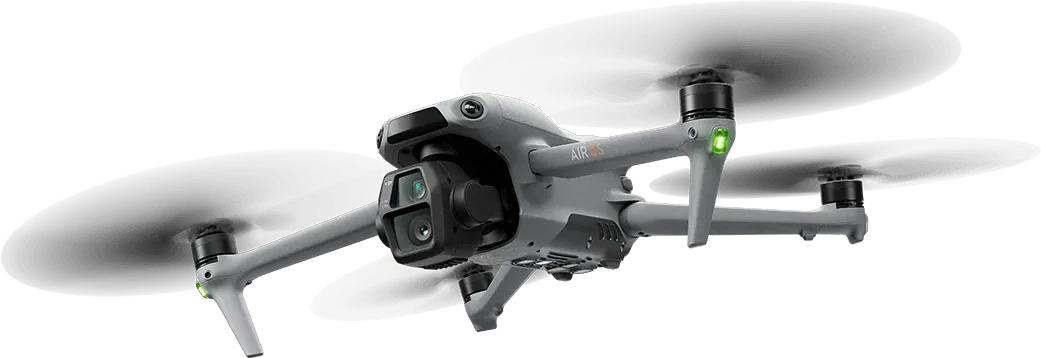
Why Stream DJI Drones to OBS?
DJI drones capture stunning aerial footage, but their built-in live streaming options are limited to specific platforms with high latency. By routing your DJI drone's video feed through CastZero into OBS Studio, you unlock the full power of professional live production — custom overlays, scene transitions, multi-source mixing, and most importantly, sub-100ms latency that keeps your broadcast feeling truly live.
This workflow is essential for real estate agents showcasing properties, event videographers covering outdoor festivals, news crews reporting from the field, and content creators who want their aerial footage to feel immediate and engaging.
What You Need Before Starting
Before setting up your DJI-to-OBS streaming pipeline, make sure you have the following:
- A DJI drone with RTMP streaming capability (Mavic 3, Air 2S, Mini 3 Pro, or newer models that support custom RTMP via the DJI Fly app or DJI RC Pro controller).
- A Windows PC with CastZero installed. Any modern Windows 10 or 11 machine will work.
- OBS Studio (version 28 or later recommended for best RTMP Media Source support).
- A stable local network — your phone (running DJI Fly) and your PC must be on the same Wi-Fi network, or you can use a mobile hotspot.
Step-by-Step: Connect Your DJI Drone to CastZero
- Launch CastZero on your Windows PC. Note the RTMP server URL shown in the dashboard — it will look like
rtmp://YOUR_PC_IP:1935/live. - Open the DJI Fly app on your phone or tablet. Go to the camera view and tap the "..." (more) menu.
- Navigate to Live Streaming and select "RTMP" as the platform.
- Enter the CastZero RTMP URL in the RTMP address field. Make sure your phone is on the same network as your PC.
- Tap "Go Live" in the DJI Fly app. You should see CastZero's dashboard confirm an incoming connection within seconds.
Configure OBS for RTMP Input
- Open OBS Studio and click the "+" button in the Sources panel.
- Select "Media Source" and name it (e.g., "DJI Drone Feed").
- Uncheck "Local File" and paste the RTMP stream URL from CastZero into the "Input" field.
- Set "Reconnect Delay" to 1 second and enable "Use hardware decoding" if your GPU supports it.
- Under Advanced, set the "Network Buffering" to the lowest value (or disable it entirely) for minimum latency.
- Click OK — your DJI drone's live footage should appear in the OBS preview within 1–2 seconds.
Keep Your Stream Smooth and Stable
Once your pipeline is running, follow these tips to maintain a rock-solid stream:
- Use a 5GHz Wi-Fi network to avoid interference from 2.4GHz devices like microwaves, baby monitors, and Bluetooth peripherals.
- Keep the drone within reliable Wi-Fi range of the DJI controller. Signal drops will cause stream interruptions.
- Monitor CastZero's bitrate indicator — if it drops below your drone's output bitrate, you may have network congestion.
- Limit the number of active encoding plugins in OBS. Each plugin adds processing overhead that can introduce micro-stutters.
- Set the DJI Fly app's stream quality to 1080p at 30fps for the best balance of quality and network bandwidth. 4K streaming requires significantly more bandwidth and may cause instability.
Why CastZero Works Best for DJI Streaming
Unlike cloud-based RTMP relays that route your video through distant servers, CastZero operates entirely on your local network. This means your drone's video signal travels only a few meters — from the DJI controller to your phone, then over Wi-Fi to your PC running CastZero, and finally into OBS. The entire path stays local, resulting in consistent sub-100ms latency regardless of your internet connection speed.
CastZero also handles stream reconnection gracefully. If the DJI drone momentarily loses its RTMP connection (common during aggressive maneuvers or at range limits), CastZero will automatically re-establish the stream without requiring you to restart OBS or reconfigure your sources.
Conclusion
Streaming DJI drone footage to OBS with sub-100ms latency is straightforward with CastZero. In just a few minutes, you can set up a professional aerial broadcasting pipeline that rivals setups costing thousands of dollars. Whether you are covering a live event, producing real estate content, or creating engaging outdoor streams, CastZero and OBS give you the tools to deliver stunning aerial footage in real time.