Why GoPro is Ideal for Wireless Live Rigs
GoPro Hero action cameras offer rugged waterproofing, wide-angle POV perspectives, and high-framerate 1080p60 output. However, default GoPro RTMP streams route through GoPro Cloud servers, causing 8 to 12 seconds of lag.
By pointing GoPro Quik RTMP publishing directly to CastZero Engine on your local PC network, you bypass cloud relays entirely, unlocking **sub-100ms latency** for live sports, stage rigs, and helmet cameras.
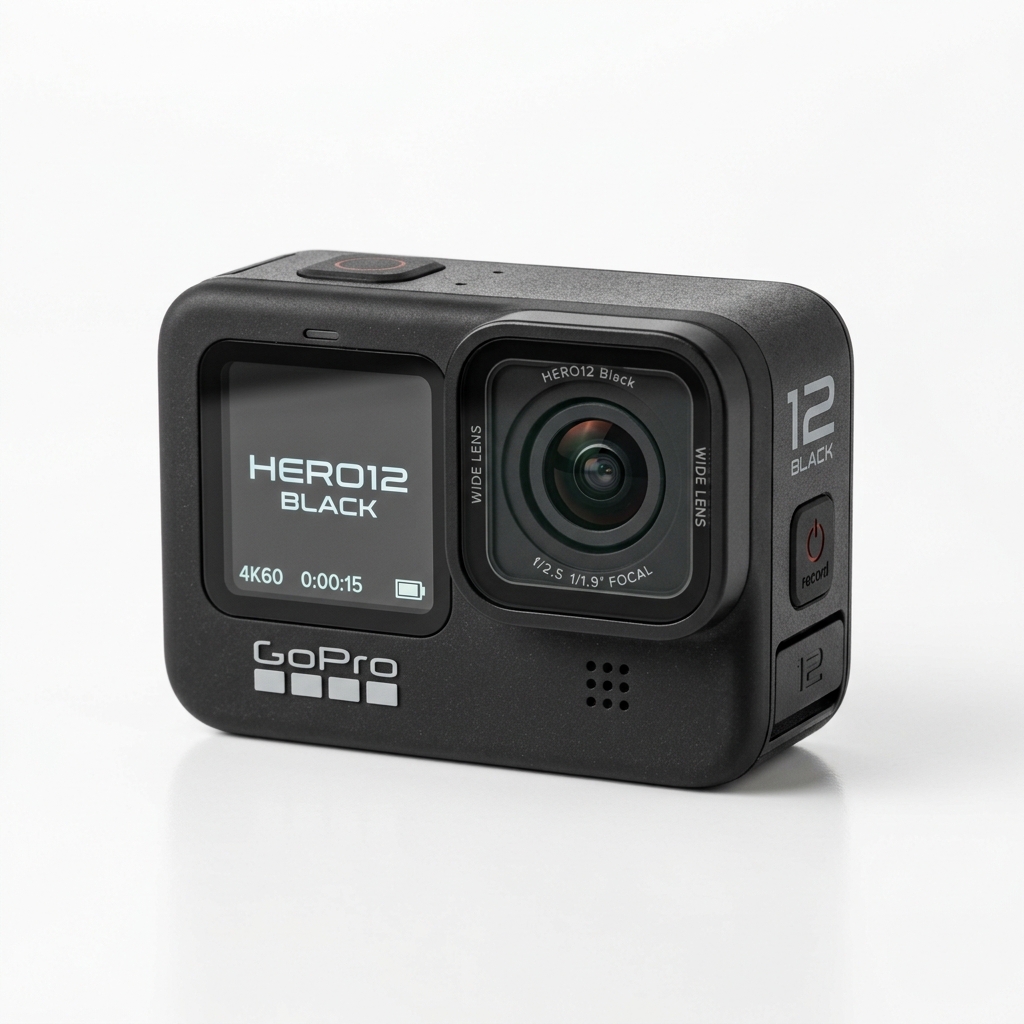 Figure 3: GoPro Hero 12 action camera configured for direct local RTMP ingest into CastZero PC Engine.
Step-by-Step GoPro Setup Instructions
- Turn On Mobile Hotspot or Wi-Fi Router: Ensure your PC running CastZero and your smartphone with the GoPro Quik app are connected to the same Wi-Fi network.
- Open GoPro Quik App: Tap Control Your GoPro → Live → Setup Live → RTMP.
- Enter Local RTMP URL: Type:
rtmp://<PC_IP_ADDRESS>:1935/live/gopro. - Configure Resolution & Save: Choose 1080p 60fps and enable Save High-Res Copy to SD Card. Tap Go Live.
- Ingest into OBS Studio: Paste
http://localhost:8889/goproas an OBS Browser Source for zero-lag live action footage.